> For the complete documentation index, see [llms.txt](https://docs.infimagames.com/llms.txt). Markdown versions of documentation pages are available by appending `.md` to page URLs; this page is available as [Markdown](https://docs.infimagames.com/product/low-poly-shooter-pack/getting-started/quick-start-guide.md).
# Quick Start Guide
## Creating a New Project With the Low Poly Shooter Pack
***
{% hint style="info" %}
Since this is asset is a **complete project**, we can't import it into one of our existing projects, it has to create a new one.
The main reason for this is because we need project specific settings in order for it work properly.
{% endhint %}
### Downloading the Content and Creating a New Project
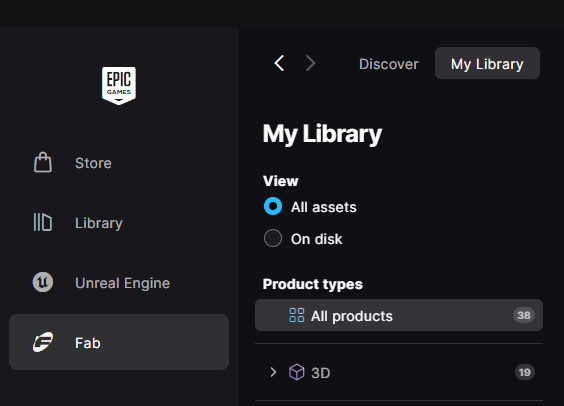
* Open the **FAB** tab inside the **Epic Games Launcher**.
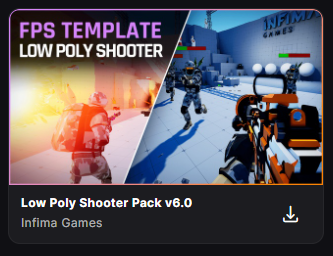
* Locate **Low Poly Shooter Pack** in your library.
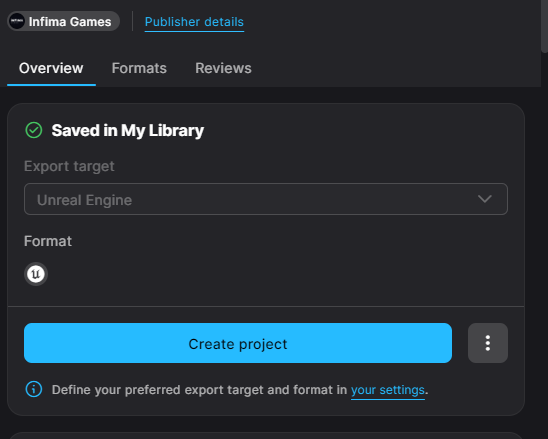
* Click on it and go to the panel that opens up, here we want to select **Create Project**.
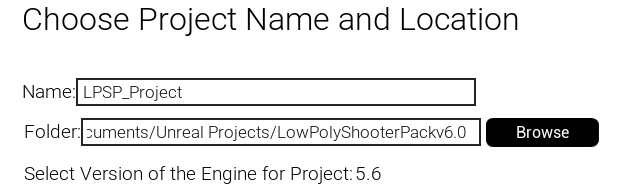
* This will open up the project creation screen, by default we will get a project name error message, this is because the default project name includes a dot, which isn't supported.
* To fix this we can simply change the name to something else, **LPSP\_Project** for example.
* Choose a folder location for the new project, and select the engine version you wish to use, **5.6** in this case, and then press **Create.**
* This will start downloading the files, and create the project for you.
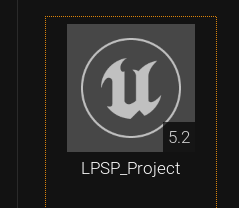
* Once the files have finished downloading, we can go to the **Unreal Engine** tab in the launcher, and locate our new project.
* Notice that the engine version shown next to the project name might not be accurate to the version you picked when creating the project, in this case we picked **5.6,** but the project shows up as **5.2.**
* This appears to be a bug on FAB, but it doesn't affect the project itself, we just have to manually select the engine version again that we wish to use.
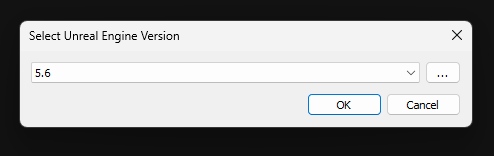
* When opening the project it will prompt you to select an Unreal Engine version, let's choose **5.6**.
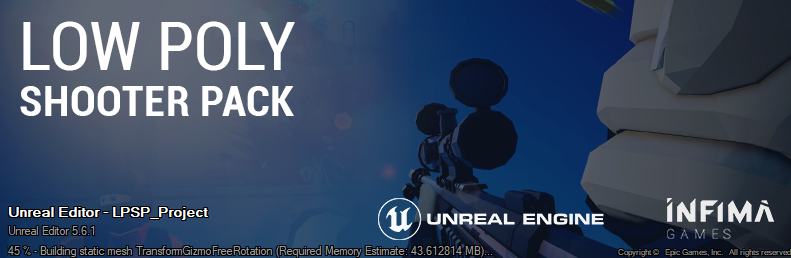
* And that's it, now the project will open!
***
### Testing the Demo Map
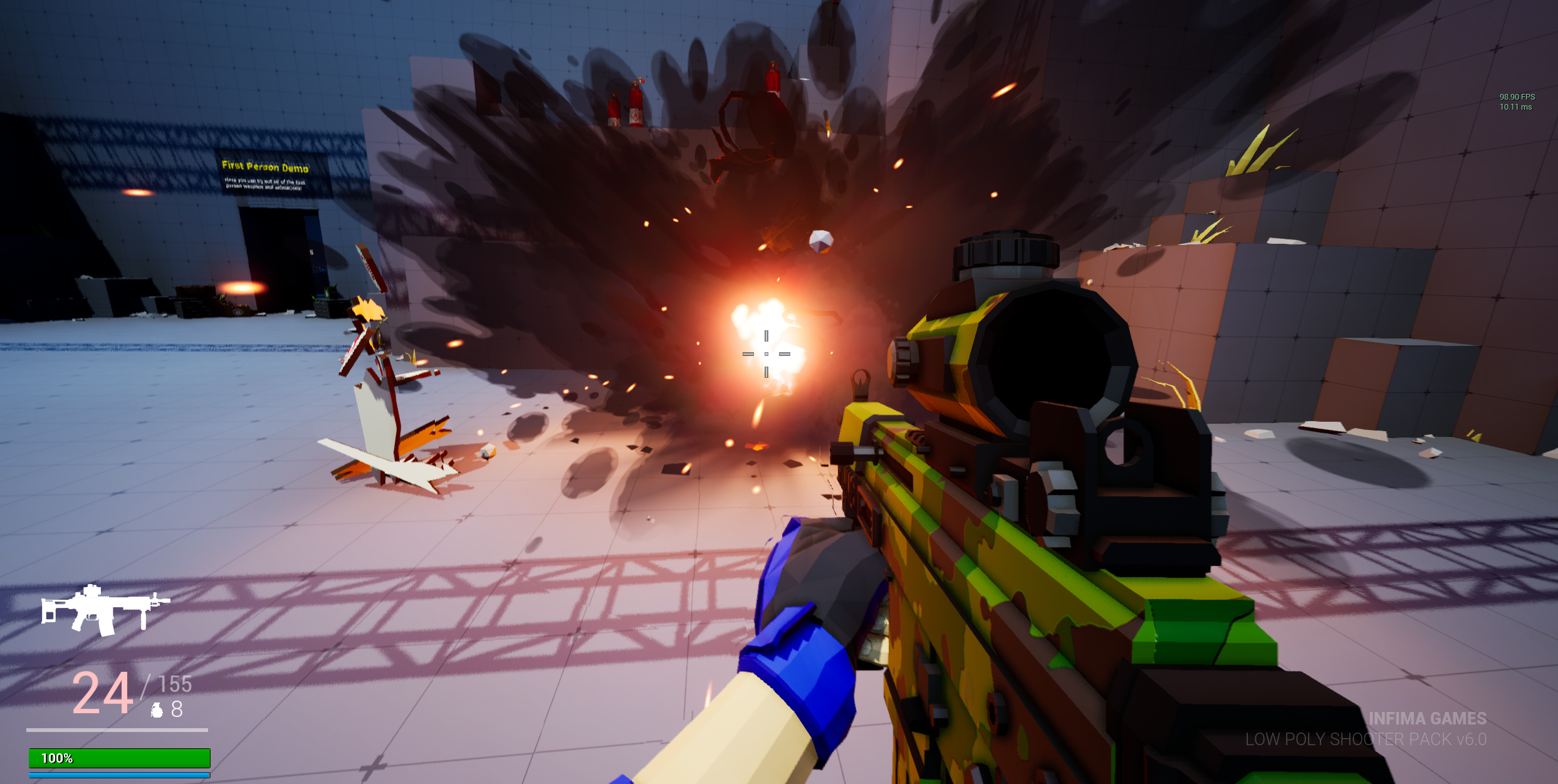
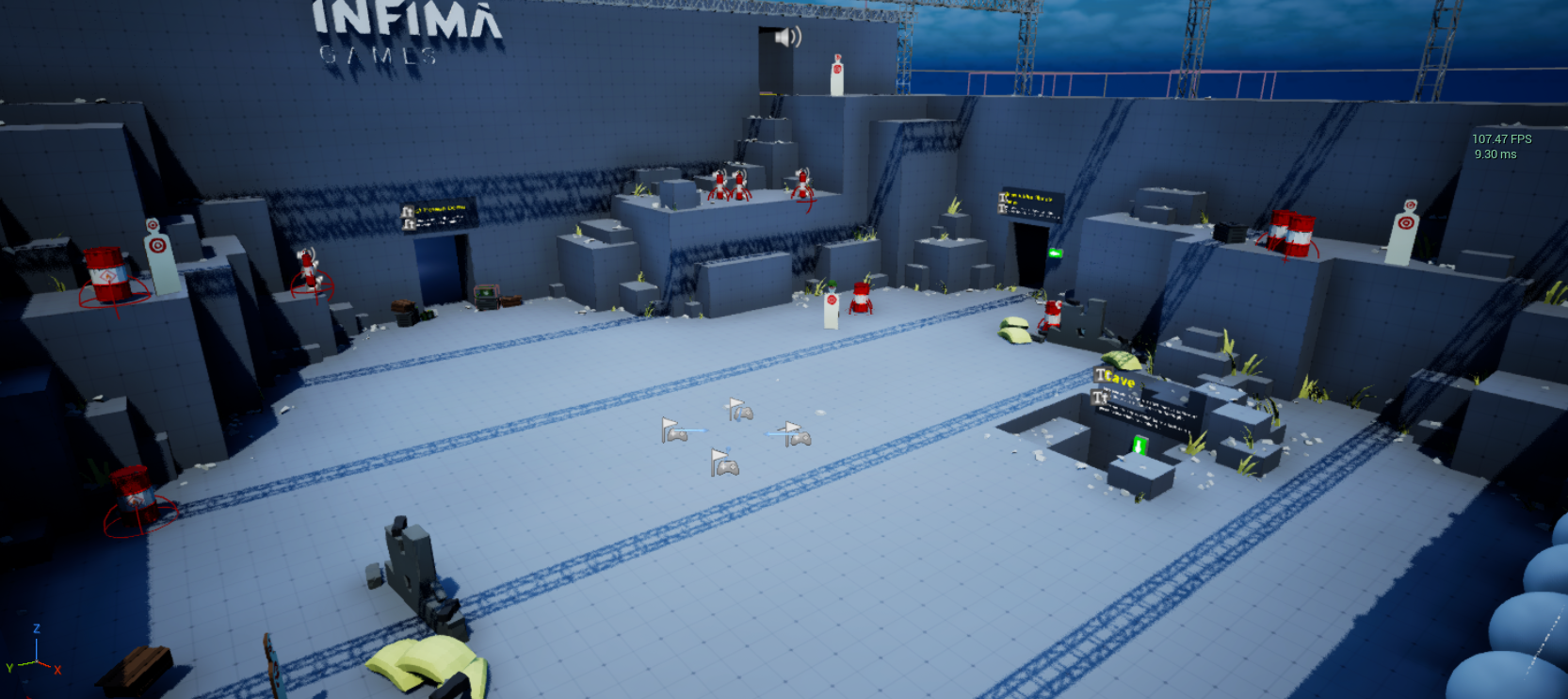
* Once the project has finished loading, you should see the default demo map right away. This map is called the "**Playground**", it's basically an open area where you can test all the features of the project, such as shooting, movement, weapon switching, explosions, shooting at AI characters, etc.
* You can hold down the **TAB** key while playing to see the entire list of key-binds, they are also available [**here**](#default-key-bindings).
* You can find all of the demo maps in this folder:\
**InfimaGames > LowPolyShooterPack > Maps.**
***
## :wrench: Fixing Common Issues
***
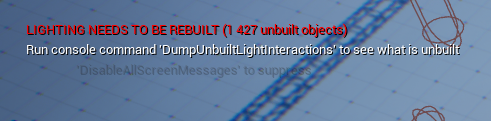
### Error Message in the Playground Map: Lighting Needs to Be Rebuilt
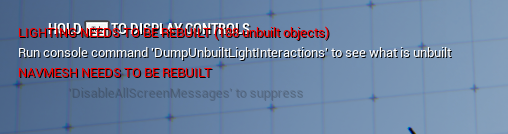
* Some users have reported that the playground map shows the LIGHTING NEEDS TO BE REBUILT warning message when first loading up, if this is the case for you, please follow these easy steps to fix it.
* (Note that this error message doesn't directly affect the functionality of the asset, but it might make the lighting look a bit weird in the playground map.)
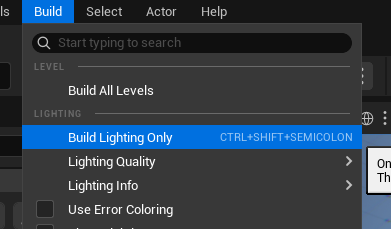
* Go to **Build**, and choose **Build Lighting Only.**
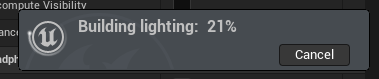
* This will start the light building process, which might take a while depending on your hardware.
* Once finished, the error message should have disappeared!
***
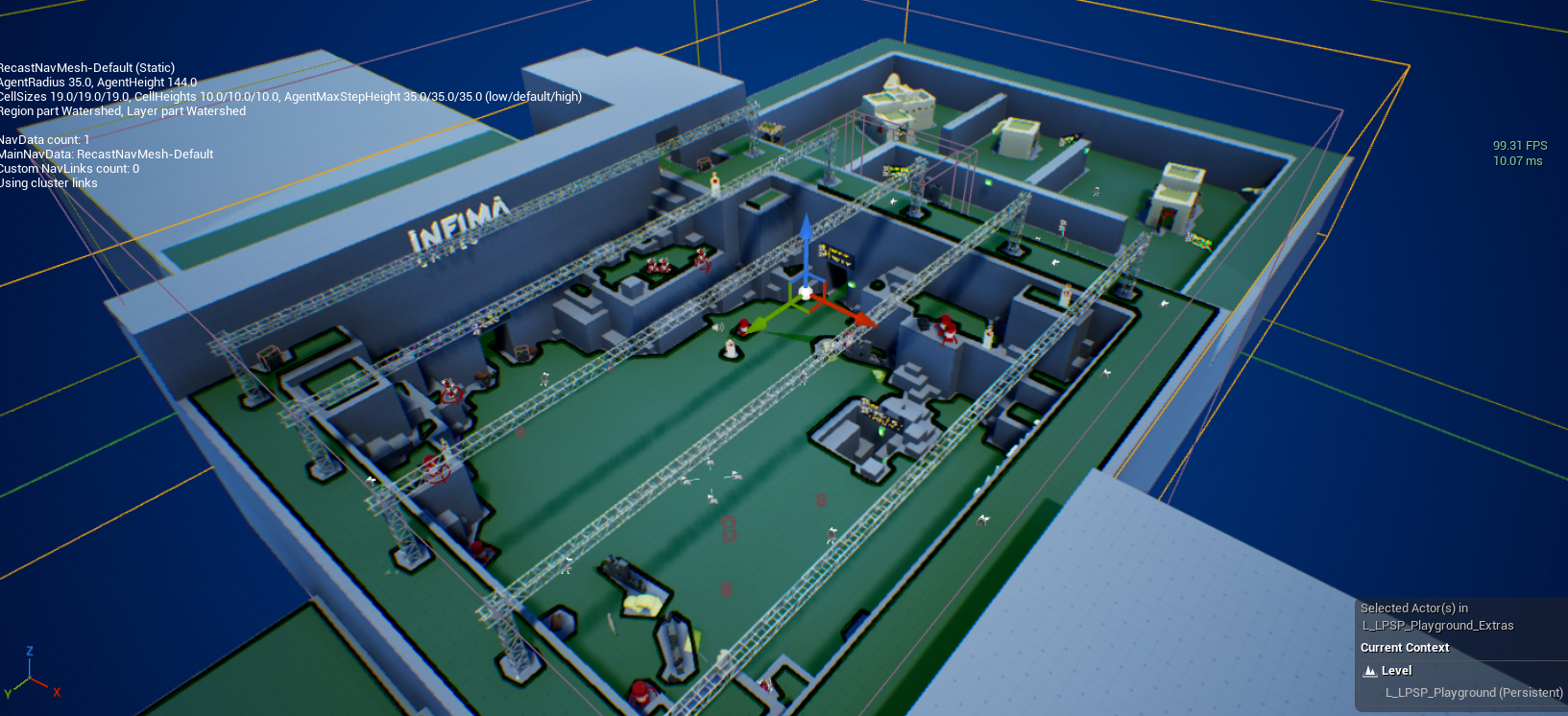
### Error Message in the Playground Map: NavMesh Needs to Be Rebuilt
* Some users have reported seeing the NAVMESH NEEDS TO BE REBUILT error message in the playground map when first loading it. This seems to be a bug that doesn't actually affect the nav mesh in the map, but it can be annoying to have the message visible all the time, so let's fix it.
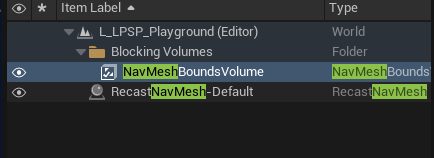
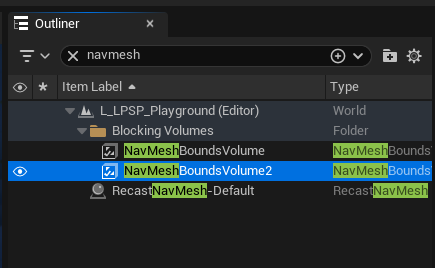
* The quickest way to get rid of it is simply to duplicate the **NavMeshBoundsVolume**, and then deleting the old one. We can do this by searching for "navmesh" in the **Outliner**, and then duplicating by selecting it and pressing **Ctrl + D**.
* This will create a new one called **NavMeshBoundsVolume2**.
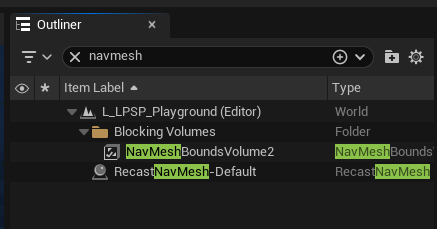
* Now we can simply delete the old one, we can also rename the duplicated one if we want to keep it clean.
* You can verify that the nav mesh is working correctly by selecting it in the outliner and pressing the **P** key in the viewport. This will visualize the nav mesh bounds in the map, so if you see the map covered in a green surface that means it's working!
***
## Default Key Bindings
Movement
* Use the **Mouse** to look around.
* Use the **WASD** keys to walk around.
* Hold **Shift** to run.
* Press **Space Bar** to play the jumping animation.
* Press **Left Ctrl** or **C** to play the crouch animation.
* Press **Q** and **E** to lean.
Weapon
* Press **Left Click** to shoot.
* Hold **Right Click** to aim.
* Press **R** to reload.
* Press **T** to inspect.
* Press **3** to holster.
* Press **H** to lower the weapon.
* Press **Z** to drop the weapon.
* Press **1, 2/Scrollwheel** to cycle equipped weapons.
Melee
* Press **V** to use the knife attack.
Unarmed
* Press **Z** to drop weapons and go unarmed.
Third Person
* Press **Y** to toggle third-person view.
Grenade
* Press **G** to throw a grenade.
Attachments (if equipped)
* Press **X** to randomize attachments.
* Press **J** to toggle laser/flashlight on/off.
Pause Menu
* Press **P** to pause the game.
Timescale
* Press **5** to freeze/unfreeze time.
* Press **8** to decrease timescale.
* Press **9** to increase timescale.
***
---
# Agent Instructions
This documentation is published with GitBook. GitBook is the documentation platform designed so that both humans and AI agents can read, navigate, and reason over technical content effectively. Learn more at gitbook.com.
## Querying This Documentation
If you need additional information that is not directly available in this page, you can query the documentation dynamically by asking a question.
Perform an HTTP GET request on the current page URL with the `ask` query parameter, and the optional `goal` query parameter:
```
GET https://docs.infimagames.com/product/low-poly-shooter-pack/getting-started/quick-start-guide.md?ask=&goal=
```
`ask` is the immediate question: it should be specific, self-contained, and written in natural language.
`goal` is optional and describes the broader end goal you are ultimately trying to accomplish on behalf of the user. GitBook uses it to tailor the answer towards what is most useful for that goal.
The response will contain a direct answer to the question and relevant excerpts and sources from the documentation.
Use this mechanism when the answer is not explicitly present in the current page, you need clarification or additional context, or you want to retrieve related documentation sections.