> For the complete documentation index, see [llms.txt](https://docs.infimagames.com/llms.txt). Markdown versions of documentation pages are available by appending `.md` to page URLs; this page is available as [Markdown](https://docs.infimagames.com/product/low-poly-animated-modern-guns-pack/guides-and-faq/guides/how-to-integrate-with-the-low-poly-shooter-pack.md).
# How to Integrate With the Low Poly Shooter Pack
### Introduction
In this guide, you will learn how to integrate the [**Low Poly Animated - Modern Guns Pack** ](https://www.fab.com/listings/6914a185-4b14-475c-8f4f-cc0a6a3c589f)with the [**Low Poly Shooter Pack**](https://www.fab.com/listings/90ba076a-dc9a-4782-9ac8-dc2ed4f06405). This means that you will be able to use all the guns in MGP with the systems in LPSP!\
\
The process of integrating these assets is something we’ve done our best to keep as simple as possible, but do let us know if you have any questions about it over on our Discord Server, where we have a support channel for any queries in relation to the Modern Guns Pack!
### How To Integrate With The Low Poly Shooter Pack
* The first step is going to be creating a new project with the [**Low Poly Shooter Pack**](https://www.fab.com/listings/90ba076a-dc9a-4782-9ac8-dc2ed4f06405). You can do this by going to your Epic Games Launcher Vault, finding the asset and clicking **Create A Project**!\
\
We do this so we can avoid any possible conflicts with the assets due to changes in the codebase of the project.\
\
Note: Try to always be on the latest Low Poly Shooter Pack release when integrating the asset with other products, as it is usually the one the integration packages are made for!
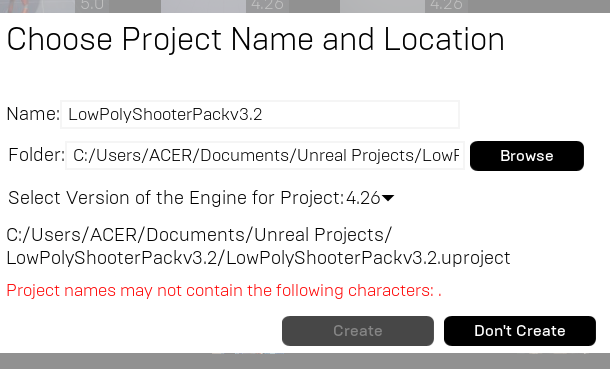
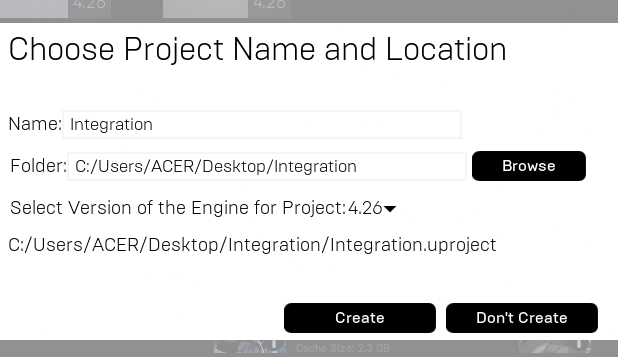
* Once we’ve clicked on the **Create A Project** button, we can rename and determine where we’re going to create this project.\
\
We’re going to rename the project to “**Integration**”, or something similar, just so we can tell what this project is. That said, do bear in mind that this is not necessarily something that you have to do! Your project can be called whatever you want!\
\
Once you’ve picked your name and project folder, you can just go ahead and click on **Create**.\
\
A fresh **Low Poly Shooter Pack** project will be created for you.
* With our fresh project, we will now have to also import the **Modern Guns Pack**, otherwise this will only be a Low Poly Shooter Pack project. To do this, we can search for the asset in the **Epic Games Launcher Vault**, click **Add To Project**, and select our newly created project.\
\
In our case this new project is called Integration.
* With this, we now have both assets in a single project. That however, does not mean that we’re done with the integration, it just means that we can now finally get started. Here comes the super fun part of extracting the integration zip file!
* Now that we have everything in the project, we just need to download and extract our zipped integration folder.
* **We can do this by going over to this message in the Discord server:**\
\ Integration Download Links on Discord
{% hint style="info" %}
Note that you need to be **verified** on our Discord server in order to access the download links. \
\
**Not verified yet?**
1. Please join the [**Discord server**](https://discord.gg/TFGWX2UtV5)**.**
2. After joining, send us an email at [**support@infimagames.com**](mailto:support@infimagames.com) including your **Order ID** number for the purchase.
3. You will then be granted the required roles on your Discord account in order to access the integration download links channel.
{% endhint %}
* There, you will find the integration link, which redirects to a Google Drive file that we can download.
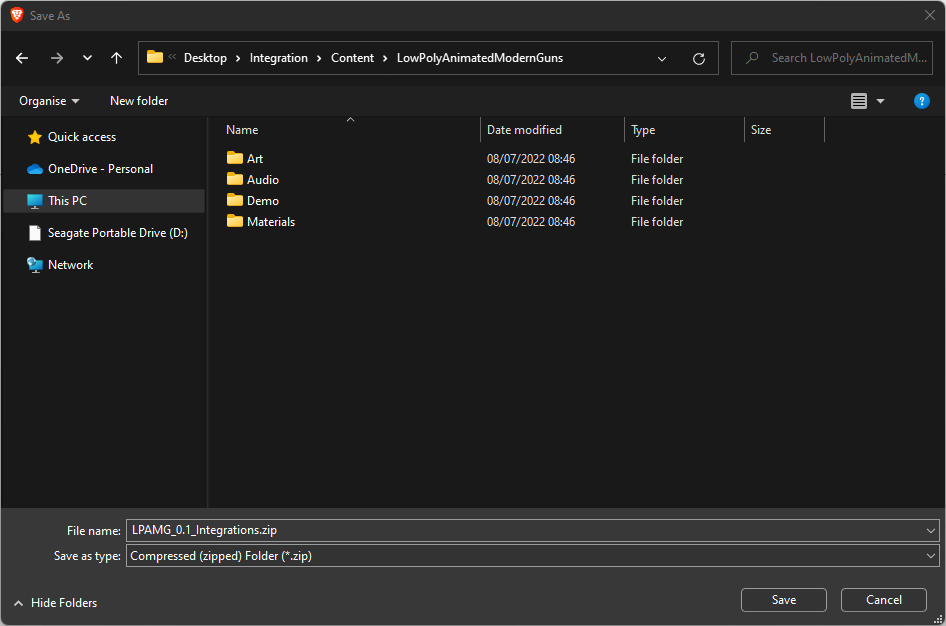
* From here we just need to click the big blue Download button, and save the zip file that we’re downloading inside of the Integration project’s LowPolyAnimatedModernGuns folder!\
\
This part is quite important, since we’ll have to extract it here! If you didn’t save it there, don’t worry though, you can just move it over there!\
\
The full path for it is: **ProjectLocation/ProjectName/LowPolyAnimatedModernGuns**\
\
In the case of the project we just created for this guide, the path is: Desktop\Integration\Content\LowPolyAnimatedModernGuns
* We’re almost done!\
\
Now we have to go to that same path where we saved the integrations zip file, and extract this zip!\
\
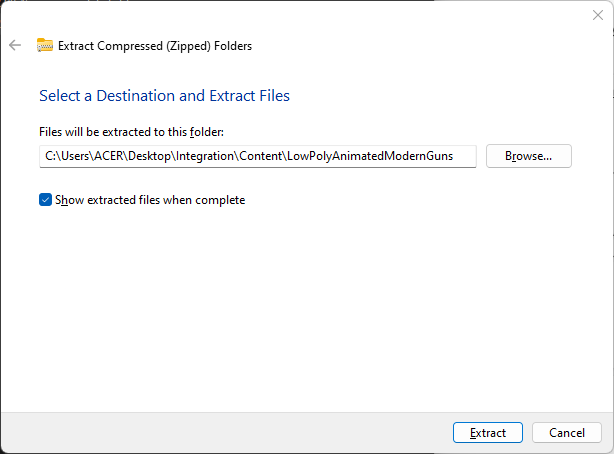
This can be done by right-clicking on it, and selecting **Extract All**. Doing this will open up an extraction window that will ask us where we want to extract everything.
* Once here, make sure you set the path as the same one we were looking for before, the one of the folder you’re currently doing everything in. In our case this looks like what you see in the image below!
* Pressing **Extract** now will do the trick, and soon you will notice a new Integrations folder appear. This folder contains all the files necessary for the LPSP-LPAMG integration, and is the main thing we’ve been needing!\
\
Now that we have this folder inside of our project, we can stop worrying about anything else and just enjoy!
* As a last step, we need to make sure to test everything, which we can do by opening the Integration project, the one we just created that contains both assets that we’re trying to integrate.\
\
This can be done either by finding the project folder, and double-clicking on the .uproject file, or by opening the project from the Epic Games Launcher Vault.\
\
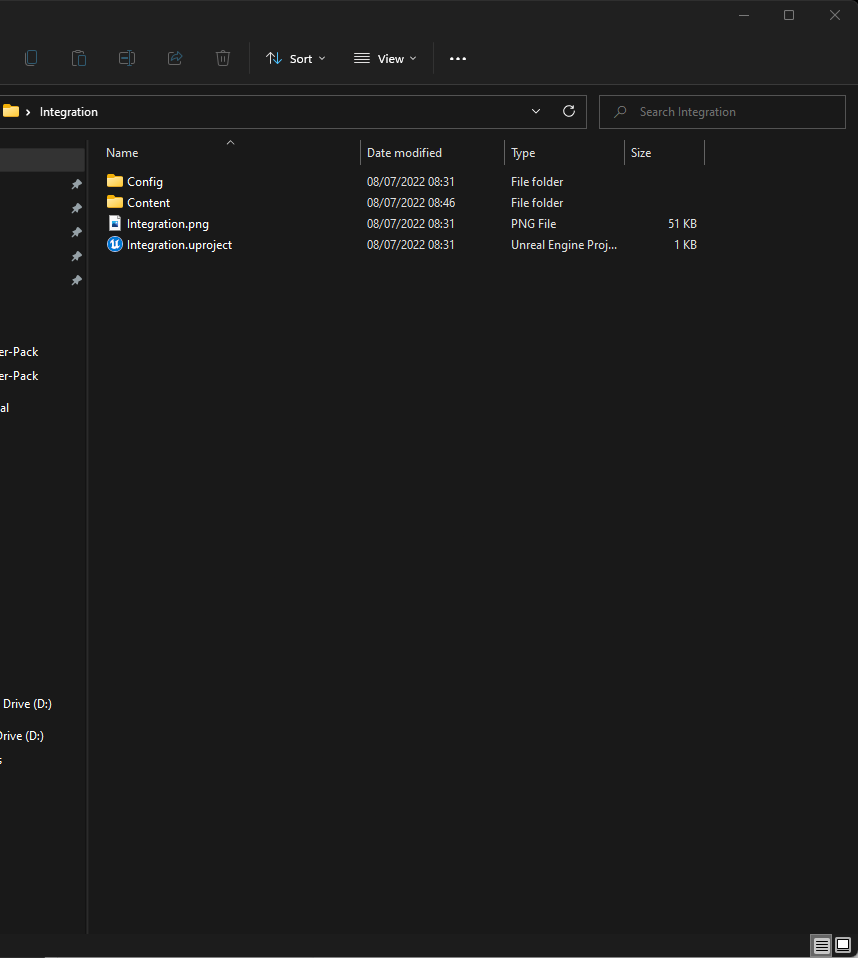
This is what the project folder looks like before we open the project for the first time:
* Once the project is open, we will navigate to the **LowPolyAnimatedModernGunsPack/Integrations/LowPolyShooterPack/Maps** folder, and double click on the **L\_LPSP\_Showcase** level!\
\
This will open the demo level that we made for you to try out the integration, and hopefully if you’ve been following the guide properly, you will get a nice FPS game to play!
***
---
# Agent Instructions
This documentation is published with GitBook. GitBook is the documentation platform designed so that both humans and AI agents can read, navigate, and reason over technical content effectively. Learn more at gitbook.com.
## Querying This Documentation
If you need additional information that is not directly available in this page, you can query the documentation by asking a question.
Perform an HTTP GET request on the following URL with the `ask` and `goal` query parameters:
```
GET https://docs.infimagames.com/product/low-poly-animated-modern-guns-pack/guides-and-faq/guides/how-to-integrate-with-the-low-poly-shooter-pack.md?ask=&goal=
```
`ask` is the immediate question: it should be specific, self-contained, and written in natural language.
`goal` is what the user is ultimately trying to achieve, the reason they need the answer. Sharing it helps GitBook give you a better, more relevant answer. A goal is most helpful when it describes the outcome the user wants rather than restating the question. For example, with `ask=how do I create an API token`, a goal like `automate deployments from our CI pipeline` lets GitBook tailor the answer to that use case.
The response will contain a direct answer to the question and relevant excerpts and sources from the documentation.
Use this mechanism when the answer is not explicitly present in the current page, you need clarification or additional context, or you want to retrieve related documentation sections.